At Aspia we take security seriously and we require all users to have secure login methods in MyBusiness. This page describes how you can choose and set up a secure login method, a Multi Factor Authentication (MFA) method. This includes both you who are new to MyBusiness but also existing users upgrading your account.
New users in MyBusiness
If you are a new user in MyBusiness you will have received an email asking you to activate your account and verify your email address, your personal information and then choose your login method.
The flow to activate your account is:
- You have received an activation email with a link to start the activation.
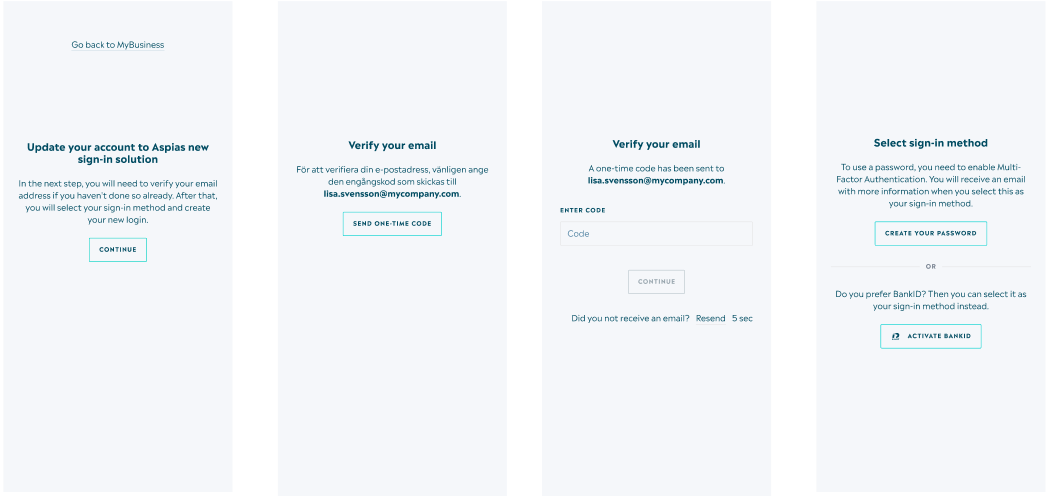
- As a security measure we will ask you to verify your email address. By pressing the button in image 1 you will receive an email with a one time password.
- The code you have received must be entered in the text box shown in image 2.
- The code is valid a few minutes before expiration. If the code does not work you can request a new code.
- You now have to confirm name and telephone number. You also need to approve the MyBusiness terms and conditions.
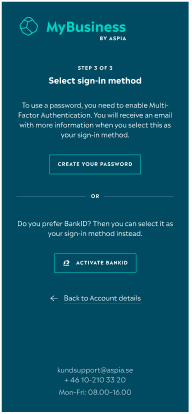
- In the next step you will proceed to set up your password to use to authenticate (image 4). In Sweden you can also choose to use Swedish BankID (image 5).
- Further down on this page you will find detailed guides how to proceed with the login method you chose.
Flow to upgrade existing account
If you already have an account in MyBusiness with username and password and need to upgrade to an MFA method you must follow the steps below.
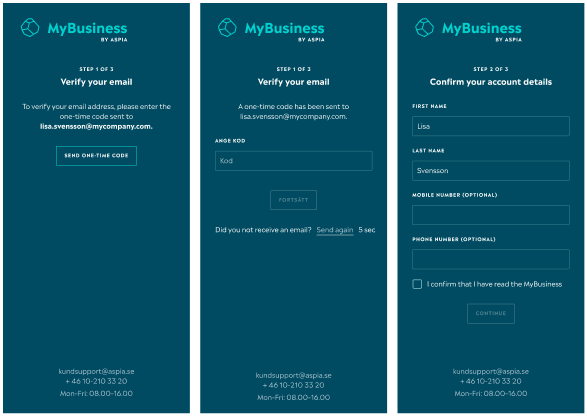
- As an extra security measure we will ask you to confirm your email address. By pressing the button in image 2 you will receive an email with a one time password.
- Enter the code into the text field in image 3.
- Note that the code is only valid a few minutes. If you did not receive an email or waited too long you can request a new code.
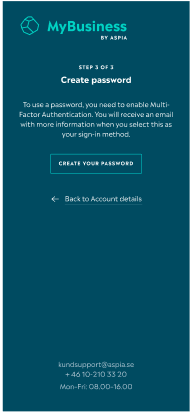
- Now you need to proceed and set your password and choose your MFA method (image 4). In Sweden you can also choose Swedish BankID as MFA method.
- Further down here you will find detailed guides how to proceed how to connect MFA with app or SMS.
Set up MFA with app or SMS
When you login with username and password you can choose to use app or SMS as MFA method. We recommend to use one of the apps (Microsoft Authenticator or Google Authenticator) as these are the most reliable solutions. If you don’t have the possibility to install apps you can however choose to use SMS.
For iOS/iPhone you can download the apps here:
- Google Authenticator https://apps.apple.com/us/app/google-authenticator/id388497605
- Microsoft Authenticator https://apps.apple.com/us/app/microsoft-authenticator/id983156458
For Android you can download the apps here:
- Google Authenticator https://play.google.com/store/apps/details?id=com.google.android.apps.authenticator2
- Microsoft Authenticator https://play.google.com/store/apps/details?id=com.azure.authenticator
To use these apps you need to connect them to MyBusiness. Regardless of if you are a new or existing user in MyBusiness you first need to set your password. The experiences of how you connect your account to these apps will appear a little bit differently depending on if you are setting up your account on a mobile device or a desktop device.
If you are on your mobile device the flow will be the following:
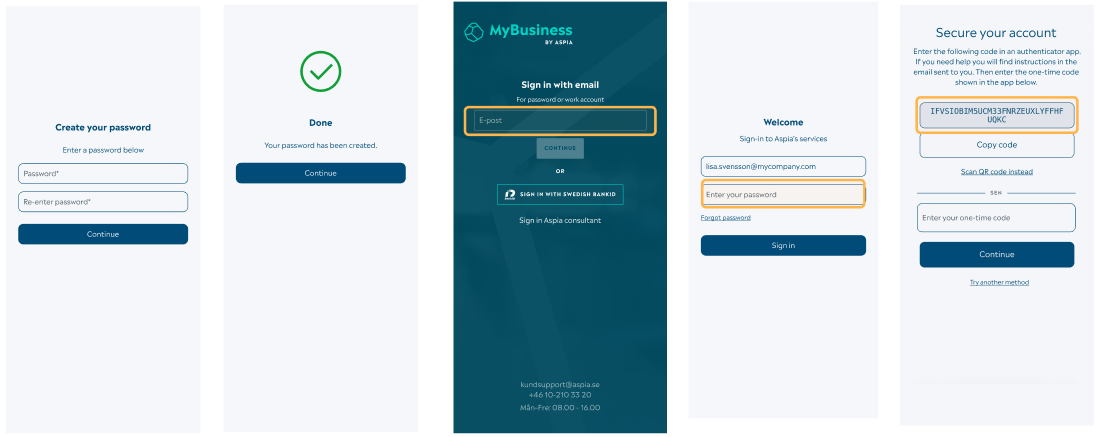
- First you must choose your password. It must consist of at least 12 characters (image 1).
- To finish the configuration of your password you are now asked to login using the new password (image 3 and 4).
- In the next step (image 5) you must configure your MFA method which is detailed below on this page. This can also appear with a QR code depending on if you are on a mobile device or a desktop device.
Microsoft Authenticator with QR code
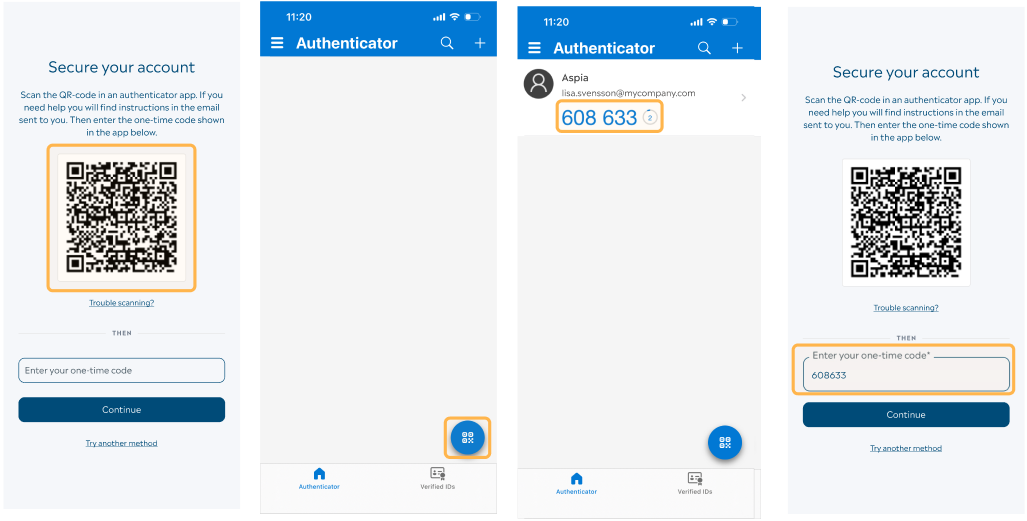
If you have selected to use Microsoft Authenticator as your MFA app and you are setting up your account on a desktop device you need to follow the following steps to connect your app to MyBusiness:
- Download Microsoft Authenticator on your mobile device.
- When the QR code is showing (image 1) you need to start the Authenticator app.
- Press the button in the bottom right corner (image 2)
- The camera starts and you can scan the QR code.
- A one-time code will show in the Authenticator app.
- Enter this code (image 4) and press continue.
- Now Microsoft Authenticator is connected and you can log in to MyBusiness
Microsoft Authenticator on a mobile device
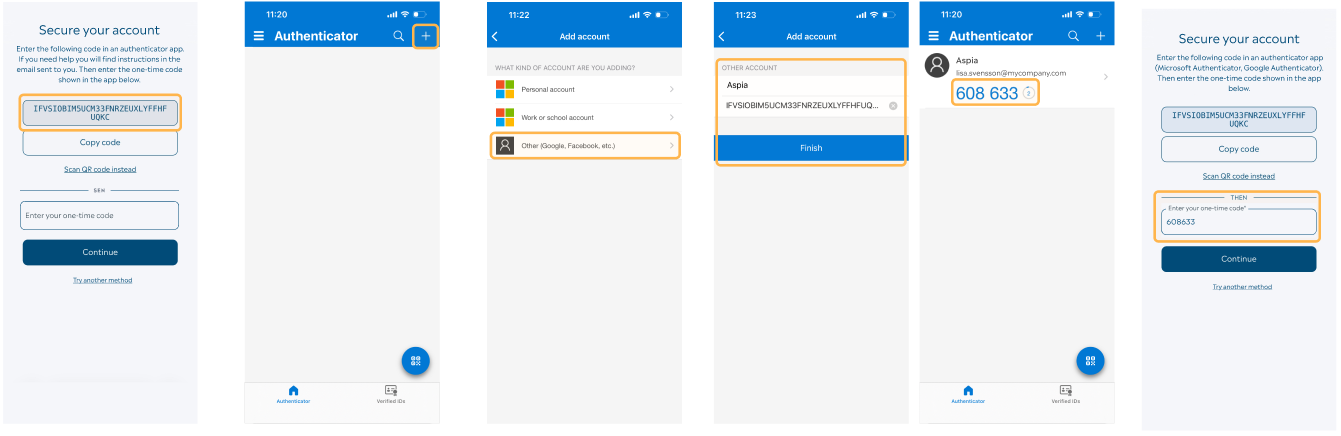
If you have selected to use Microsoft Authenticator and you are on your mobile device when setting up your account the flow will appear a little bit differently since you cannot scan the QR.
- Download Microsoft Authenticator on your mobile device.
- A long code will be shown (image 1).
- Press “Copy code” to copy the code that needs to be input into the next step.
- Start the Authenticator app.
- In the Authenticator app you need to press the “plus” icon in the upper right (image 2) and then choose “Other…” in the next step (image 3).
- Paste the code you copied earlier in the text box shown (image 4) and press Finish.
- A one-time code will now show in the app.
- Enter this code (image 5) and press Continue.
- Now Microsoft Authenticator is connected and you can log in to MyBusiness.
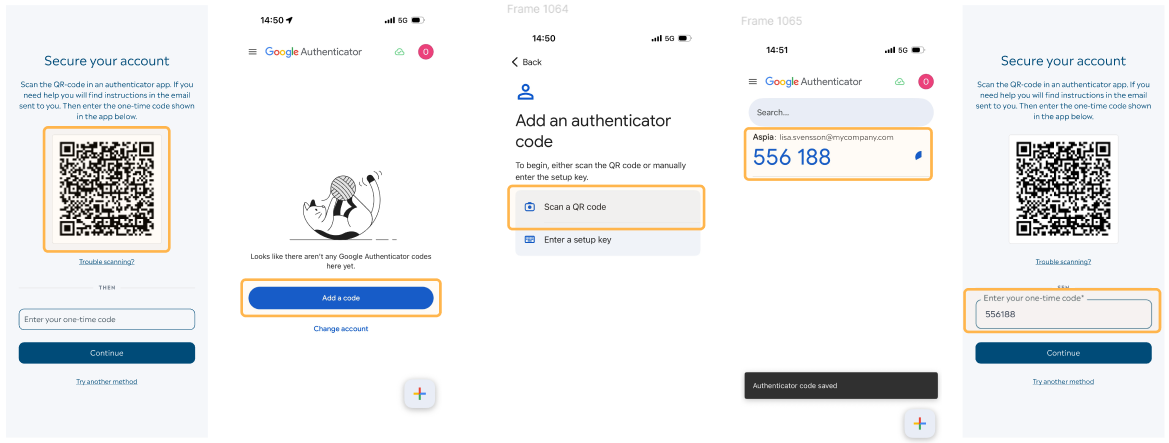
Google Authenticator using QR code
If you have selected to use Google Authenticator as your MFA app and you are setting up your account on a desktop device you need to follow the following steps to connect your app to MyBusiness:
- Download Google Authenticator on your mobile device.
- When the QR code is showing (image 1) you need to start the Authenticator app.
- Press button “Add a code” (image 2) and then choose “Scan a QR code” (image 3).
- The camera starts and you can scan the QR code showing.
- A one-time code will show in the app (image 4).
- Enter this code (image 5) and press Continue.
- Now Google Authenticator is connected and you can log in to MyBusiness.
Google Authenticator on a mobile device
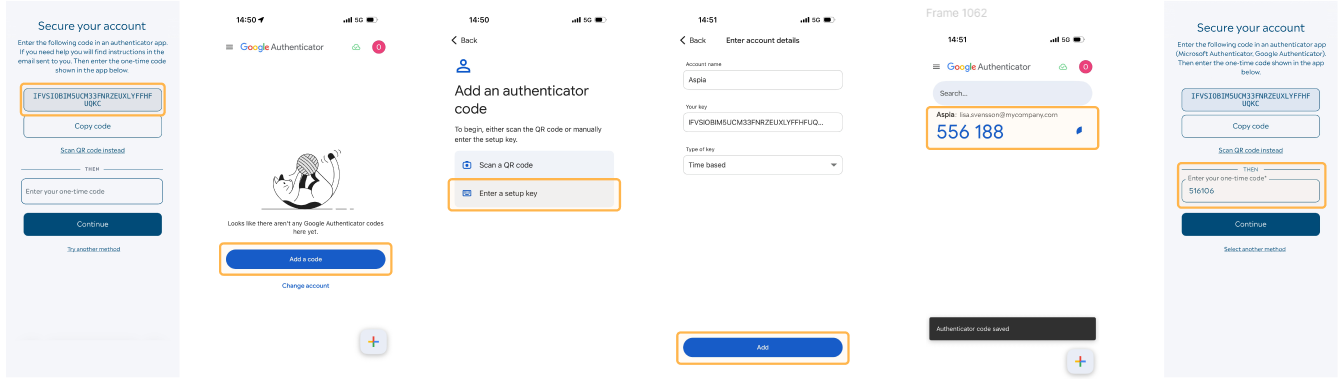
If you have selected to use Google Authenticator and you are on your mobile device when setting up your account the flow will appear a little bit differently since you cannot scan the QR.
- Download Google Authenticator on your mobile device.
- A long code will be shown (image 1).
- Press “Copy code” to copy the code that needs to be input into the next step.
- Start the Authenticator appen.
- Press the button ”Add a code” (image 2) and then choose “Enter a setup key” (image 3).
- Paste the code you previously copied and paste it into the textbox “Your key” and then press “Add” (image 4).
- A one-time code will now be displayed in the app (image 5).
- Enter this code (image 6) and press Continue.
- Now Google Authenticator is connected and you can log in to MyBusiness.
SMS based MFA
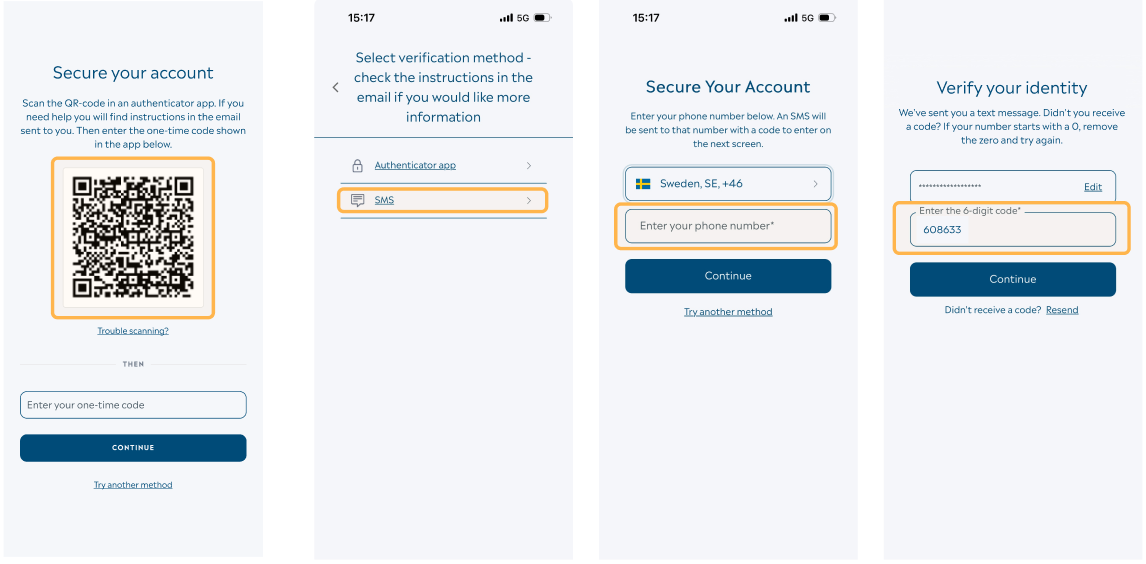
If you don’t want to or are unable to use an authenticator app for login you have the option to use SMS for MFA. Please note that there can be issues with your mobile network that might affect this method.
- In the steps shown above where you are asked to scan a QR code or copy a code if you are on a mobile device there is an option for “Try another method” (image 1).
- Choose SMS in the next step (image 2).
- Enter the telephone number you want to use to receive the SMS (image 3). Please note that this number is not the same that might be entered as contact information to you in MyBusiness.
- Note that the format of this number is sensitive and should be entered without an initial “0”.
- A one-time code will be sent to your number.
- Enter the code you received (image 4) and press Continue.
- Now SMS has been set up as your MFA method.
Logging in with username and password with MFA
When you log in to MyBusiness you might have to use your MFA method. This will be necessary initially as a new user but will not always be necessary. Different factors such as your location, your device, time of day and so on affect this. If the system finds something that deviates from normal behavior an MFA is needed,
If you have used MyBusiness previously you might find that the login interfaces appear a little bit different.
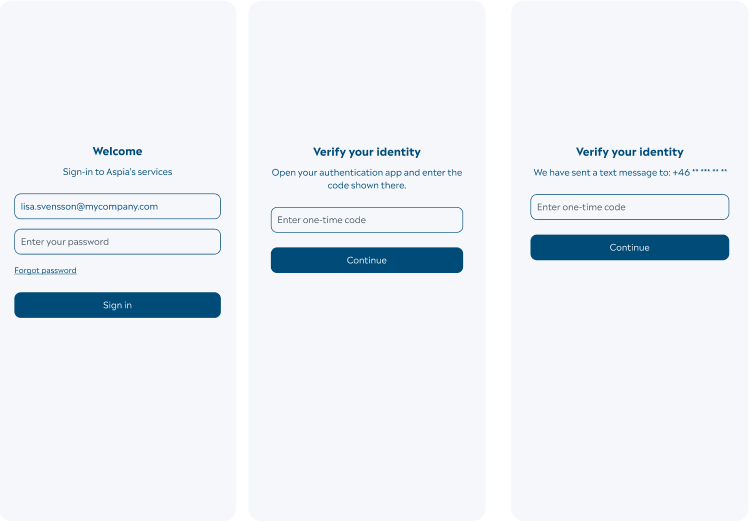
- You enter your username and password (image 1).
- If MFA is required then image 2 or image 3 will be shown depending on if you have selected MFA with app or SMS:
- If you have an Authenticator app you open the app and find the MFA code there.
- If you have selected SMS you will receive an SMS with a one-time code.
- You enter the code and press Continue.
- You are now logged in.